
Google Calendar
Smart Calendar For Busy Professionals
Screenshots
Discovering Google Calendar: A Must-Have for the Organized Mind
If you're anything like me, juggling work, personal life, and a seemingly endless list of commitments, Google Calendar might just be your new best friend. Let me take you on a tour of this nifty app that's become my go-to for staying on top of things.
Your First Look: A Clean and Simple Start
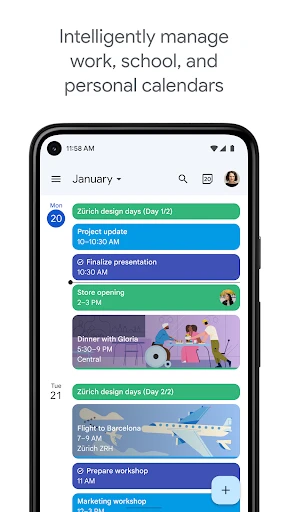
Downloading and setting up Google Calendar is a breeze. As soon as you open the app, you're greeted with a clean, intuitive interface that doesn’t overwhelm you with options. The design is minimalistic and easy on the eyes, which is always a plus when you're trying to plan your day without getting a headache. The colors are vibrant yet calming, not too flashy but enough to make each entry stand out.
Handy Tools to Simplify Your Schedule
So, what makes Google Calendar stand out from the crowd? For starters, it syncs seamlessly across all your devices. I can't tell you how many times I've added something on my phone and had it pop up on my laptop without lifting a finger. It’s like magic, but better because it's real!
Another feature I absolutely love is the ability to share calendars with others. Whether you’re planning a group project or just trying to keep track of family events, having a shared calendar means everyone’s on the same page. Plus, you can customize notifications so you never miss a beat.
Playing Well With Others: Seamless App Connections
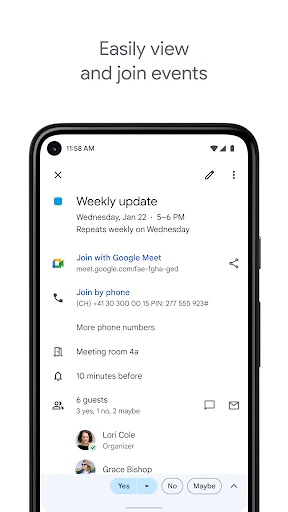
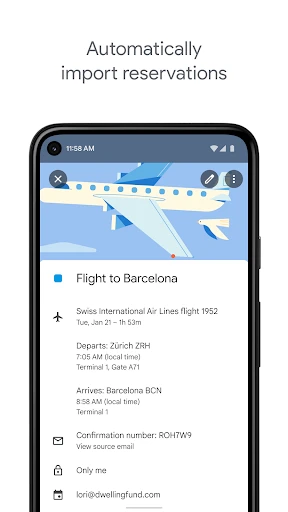
Google Calendar doesn’t just work in isolation; it plays well with other apps too. It integrates smoothly with Google Meet for those countless video calls we all have these days. You can even tie in your Gmail to automatically add events from your emails. Talk about convenience!
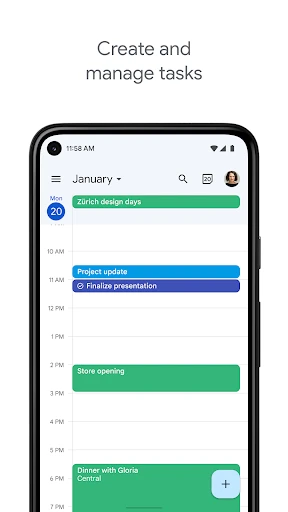
And let’s not forget about the integration with other productivity tools like Task and Keep. If you’re someone who likes to plan everything to the T, you’ll appreciate how it brings all your to-dos and notes under one roof.
Making It Your Own: A World of Personalization
One of my favorite things about Google Calendar is how customizable it is. You can color-code events to differentiate between work, personal, and other activities. It's a small feature, but trust me, it makes a world of difference when you’re scanning your week at a glance.
And if you’re someone who likes to get a little creative, you can even set different views for your calendar – daily, weekly, monthly – whatever floats your boat. It’s all about making it work for you, not the other way around.
Wrapping Up: Reasons to Start Using It Today
In a world where time is of the essence, having a reliable calendar app is crucial. Google Calendar is not just a tool; it’s your personal assistant that helps you navigate through life’s chaos with grace. Whether you’re a student, a professional, or just someone trying to keep track of their day-to-day, this app has something to offer.
So, if you haven’t already, give Google Calendar a whirl. You might just find yourself wondering how you ever managed without it. And remember, staying organized doesn’t mean you have to sacrifice style or simplicity. With Google Calendar, you truly get the best of both worlds.
Advantages
- Syncs with multiple devices seamlessly.
- Integrates with other Google services.
- Allows setting of reminders and notifications.
- User-friendly interface with easy navigation.
- Customizable event colors for better organization.
Disadvantages
- Limited offline functionality.
- Requires a Google account to use.
- Privacy concerns with data sharing.
- Occasional sync issues with other apps.
- Can be overwhelming with too many events.
Frequently Asked Questions
Q: What features does Google Calendar offer to help manage my schedule?
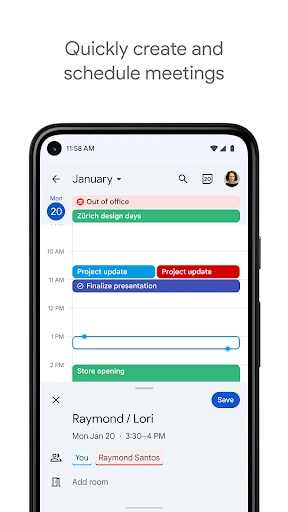
A: Google Calendar is packed with features to help users effectively manage their time. It allows you to schedule events, set reminders, and share your calendar with others. You can also create multiple calendars for different parts of your life, integrate with other Google services, and access your calendar from any device. The app's intuitive interface makes it easy to navigate and customize your schedule.
Q: How can I share my Google Calendar with others, and can they edit it?
A: Sharing your Google Calendar is simple. You can choose to share it with specific people or make it public. When sharing, you can control whether others can make changes or only view events. This feature is particularly useful for coordinating with teams or family members. To share, just go to your calendar settings, select 'Share with specific people,' and choose the permissions you want to grant.
Q: Is Google Calendar free to use, or are there any premium features?
A: Google Calendar is available for free to all users with a Google account. The free version is feature-rich, offering everything most users need to manage their schedules efficiently. There are no premium features within the calendar app itself, but it integrates seamlessly with other paid Google Workspace apps, which might offer expanded functionalities for business use.
Q: Can Google Calendar integrate with other apps and devices?
A: Yes, Google Calendar integrates well with a variety of apps and devices. It's compatible with other Google services like Gmail and Google Meet, allowing you to add events directly from your email or schedule video calls. It also syncs with third-party apps such as Microsoft Outlook and Apple Calendar. Additionally, you can access your calendar on Android and iOS devices, ensuring your schedule is always up-to-date.
Q: What privacy options are available in Google Calendar?
A: Google Calendar provides several privacy options to ensure your data is secure. You can set your calendar to be private, share with specific people, or make it public. Event details can be hidden or shown to invitees only. Google also offers robust security measures, including two-factor authentication, to protect your account. Users can adjust privacy settings according to their preferences in the calendar's settings menu.
Technical Information
Recommended for You

Listen Audiobook Player

WOMBO Dream - AI Art Generator

Videa: AI Video Maker, Effects

Fart Sounds

Carista OBD2

My Aurora Forecast & Alerts

Timestamp Camera Pro

Rapchat: Music Maker Studio

Greenlight Kids & Teen Banking

Rocket Money - Bills & Budgets

Luzia: Your AI Assistant

Brilliant: Learn by doing

Camouflage Doors Mod for MCPE

DogPack: Dog Parks & Services

Boost Mobile

Alli360 by Kids360

Call Santa Claus - Prank Call

Phone by Grice

CryptoTiles - Prices & Charts

Flight Tracker & Flight Radar

Hear My Baby Heartbeat Monitor

PhotoBoost - AI Photo Enhancer

HuntStand: GPS Maps & Tools
