
Cast to TV, Chromecast & Roku
Cast Videos To Your TV Screen
Screenshots
Turning Your Living Room into the Ultimate Streaming Hub
Setup and First Impressions
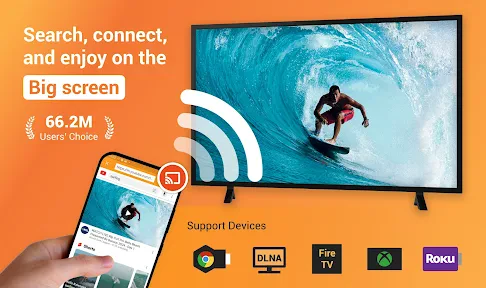
You know, there’s nothing quite like kicking back on the couch after a long day and diving into your favorite shows or movies. But what if I told you that there’s a way to supercharge that experience? Enter Cast to TV, Chromecast & Roku — an app that’s got everyone buzzing. Having given it a whirl, I’m here to spill the beans on what it’s all about.
Getting the Cast to TV app up and running is a total breeze. No matter if you're team Chromecast or a Roku user, the app makes setting everything up really simple. I was pretty impressed with how fast I could get it all working. Just grab the app on your phone, follow a few basic steps, and presto — your phone turns into a handy remote for your TV.
The layout is super user-friendly. It doesn't hit you with a ton of ads or clutter, which is a nice break from a lot of other apps. When you open it up, you see a clean and simple screen that gets you right to what you want to do.
Features You’ll Love
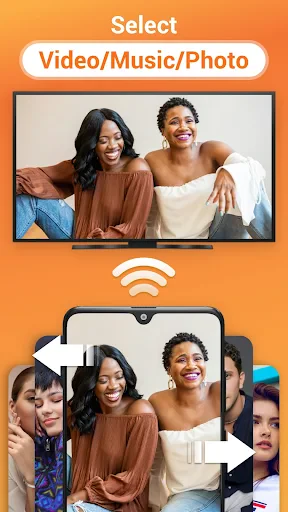
One of the coolest things about this app is how much it can do. You're not just limited to videos; you can also play your music and even display your photo collection on the TV. It’s perfect for creating a personal slideshow when you have guests over — seriously, it changes everything.
If you're into music, you'll like that the app handles lots of different file types, so you aren't stuck with just one. The sound quality stays really great, so your favorite tracks sound just as amazing on the big speakers as they do through your earbuds.
And then there's the screen mirroring. Whether you need to show a work presentation or just want to demo a fun new app from your phone on the TV, it's a piece of cake. The connection is solid with hardly any delay, which is super important when you're trying to keep everyone's attention.
Navigating Through the App
Even though the app is pretty simple to use, it has some neat tricks up its sleeve. You can put together playlists right inside the app, which is awesome for planning a movie night. And if you like to personalize things, you can change a few settings to match how you like to watch.
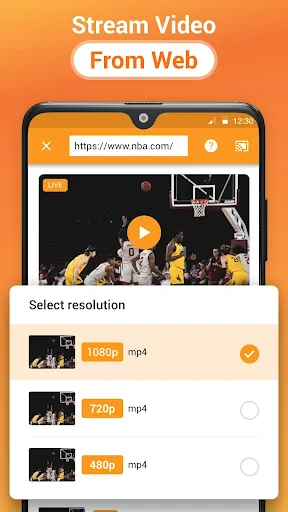
Something I really noticed was how the app can change the video quality on its own depending on your Wi-Fi. This is a lifesaver because it means you won't get stuck with constant loading screens right at the best part of the movie!
Final Thoughts
In a time when everyone is streaming, an app like Cast to TV, Chromecast & Roku is a real winner. It seamlessly connects your phone and your TV, making your binge-watching sessions so much better. Whether you're a gadget lover or just someone who wants to spice up movie night, this app is definitely worth trying.
So, if you're looking to step up your streaming, give this app a go. It's easy to use, full of handy features, and honestly, it's a simple way to turn your living room into the best spot for entertainment.
Advantages
- Seamless casting to multiple devices.
- Supports a wide range of video formats.
- User-friendly interface design.
- Quick and easy setup process.
- High-quality streaming without lag.
Disadvantages
- Requires stable internet connection.
- Ads can be intrusive at times.
- Limited free version features.
- Occasional connectivity issues.
- Not compatible with all TV models.
Frequently Asked Questions
Q: What devices are compatible with Cast to TV, Chromecast & Roku?
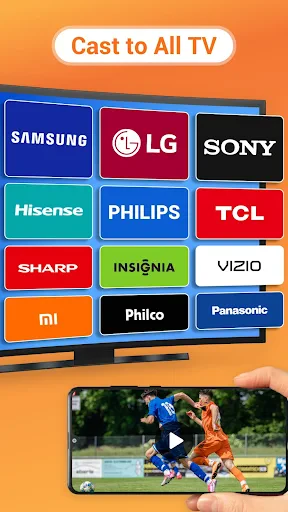
A: Cast to TV, Chromecast & Roku is compatible with a wide range of devices, including Android smartphones and tablets, iOS devices, as well as Chromecast and Roku streaming devices. Before installing, ensure that your smartphone or tablet is running on a compatible operating system version and that your Chromecast or Roku device is up-to-date with the latest firmware.
Q: How do I connect my device to Cast to TV, Chromecast & Roku?
A: To connect your device to Cast to TV, Chromecast & Roku, ensure both your mobile device and the streaming device are on the same Wi-Fi network. Open the app and select the media you wish to cast. The app will search for available devices; simply select your Chromecast or Roku device from the list to start casting.
Q: Can I cast content from all apps using Cast to TV, Chromecast & Roku?
A: While Cast to TV, Chromecast & Roku supports casting from many popular apps, not all apps allow casting due to restrictions or lack of support. To check if a particular app supports casting, look for the cast icon within the app or refer to the app's support documentation. This ensures you can enjoy seamless streaming from your preferred apps.
Q: Is there a cost associated with using Cast to TV, Chromecast & Roku?
A: Cast to TV, Chromecast & Roku often comes with a free version that includes basic features. However, for an enhanced experience, such as ad-free usage or additional functionalities, there might be a premium version available. Always check the app store listing for detailed information regarding pricing and available subscriptions.
Q: What should I do if I encounter technical issues when using Cast to TV, Chromecast & Roku?
A: If you experience technical issues, first try restarting your app and devices. Ensure all devices are connected to the same Wi-Fi network and are running the latest software updates. If problems persist, consult the app's help section or contact customer support for further assistance and troubleshooting.
Technical Information
Recommended for You

Cruise Norwegian – NCL

IXL

Cleaner Goal

Hi Weather Launcher-Live Radar

Go Fly Drone Camera Controller

ID Photo - Easy ID Maker

SkyView® Lite

Standup Wireless

DraftKings Pick6: Fantasy Game

Smart TV Cast: Screen Share

Avast SecureLine VPN & Privacy

Uber - Request a ride

Easy Quran Mp3 Audio Offline

Hoop - Make new friends

WFAA - News from North Texas

Float Tube- Float Video Player

AlphaNovel — Books & Stories

Locket Widget

Max: Stream HBO, TV, & Movies

Amazon Kids Parent Dashboard

Kelley Blue Book: We Know Cars

Weather watch face W5.5

Xumo Play: Stream TV & Movies
