
PhotoScan by Google Photos
Digitize old photos easily for everyone forever
Screenshots
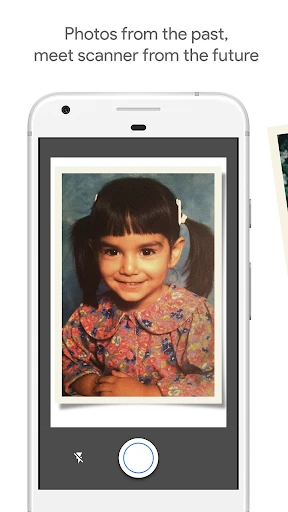
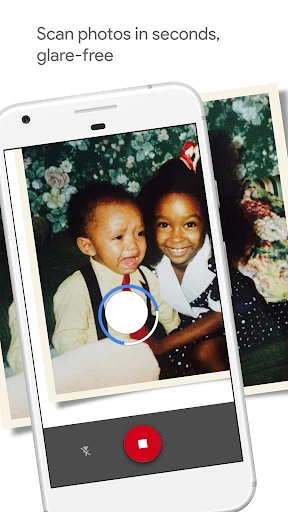


Bring Your Old Photos into the Digital Age with PhotoScan by Google Photos
**Getting the App and Starting Out**
Getting PhotoScan on your phone is super simple. It's a free download for both Android and iOS, and it installs in no time. When you open it up, you'll find the layout is really clean and straightforward. There's nothing complicated to figure out. I thought the initial setup was a breeze, walking me through the first steps without any confusion.
**How the Scanning Process Actually Works**
The real fun begins when you start scanning your pictures. This isn't just taking a regular photo of a photo. The app uses a smart trick to get rid of glare and make the picture look better. It asks you to move your phone around the photo, capturing it from a few different spots. Then, it blends all these views together to give you a final, clear, digital copy. I was also impressed with how it deals with photos that aren't in perfect shape. Even if your old picture has a fold or a smudge, the app does a pretty good job of making it look neat. It's like having a tiny photo restoration expert right in your phone!
**Saving and Managing Your Scanned Photos**
After you've scanned your photos, they can go straight into your Google Photos account. This connection is a massive advantage if you already use other Google services. You can not only keep your pictures safe online, but you can also sort them into albums and share them with people right from the app. I found this super convenient because it means you don't have to worry about finding another way to back them up. It's a great feeling to know your memories are secure and you can look at them whenever you want.
**A Couple of Things to Keep in Mind**
PhotoScan is a great app, but it does have a few little quirks. The scanning itself, while it works well, can take a bit of time. You'll need some patience if you have a whole pile of photos to get through. Also, the app really needs a well-lit area to work its best, so you might have to find a good spot with plenty of light. Another small note is that it's fantastic with normal-sized photos, but it can have a harder time with really big ones or odd shapes. It's not a major problem, but it's something to remember if your collection has any unusual photos in it.
**Is It Worth Your Time?**
When you look at the whole package, PhotoScan by Google Photos is a fantastic app for anyone who wants to save their old pictures digitally. It's easy to use, does a great job, and connects perfectly with Google Photos for storing and sharing. Even with a few small drawbacks, the good parts are so much more important, making it an essential download for anyone who loves their photo memories. If you've been thinking about saving those old albums, you should definitely try PhotoScan. You'll be so glad you took the time to save those special moments!
Advantages
- Easy to use interface for quick scanning.
- Automatically enhances image quality.
- Integrates with Google Photos for organization.
- Supports sharing scanned photos easily.
- No ads for a seamless experience.
Disadvantages
- Requires good lighting for best results.
- Limited editing features post-scan.
- Occasional glare issues in scans.
- No batch scanning option available.
- Needs more frequent updates for features.
Frequently Asked Questions
Q: What is PhotoScan by Google Photos and how does it work?
A: PhotoScan by Google Photos is an app designed to help users digitize their printed photos. Utilizing advanced technology, it captures glare-free images of printed photos by guiding users to take multiple shots from different angles and assembles them into one seamless photo. The app automatically crops, rotates, and enhances these images, making it easy to preserve and share cherished memories in digital format.
Q: Does PhotoScan work on both Android and iOS devices?
A: Yes, PhotoScan by Google Photos is available for both Android and iOS devices. Users can download it from the Google Play Store for Android devices or the Apple App Store for iOS devices. It ensures compatibility with a wide range of smartphones and tablets, providing an easy and convenient way to digitize photos across different platforms.
Q: Is an internet connection required to use PhotoScan?
A: No, an internet connection is not required to use PhotoScan by Google Photos. The app functions offline, allowing users to scan and save photos directly to their device's storage. However, if users wish to back up their scanned photos to Google Photos or share them online, an internet connection will be necessary.
Q: How does PhotoScan handle glare and reflections when scanning photos?
A: PhotoScan by Google Photos is designed to reduce glare and reflections typically encountered when photographing printed photos. It guides users to capture four corners of the photo from different angles, which the app then intelligently stitches together, removing glare and enhancing image quality. This feature ensures that users get a clear and accurate digital representation of their physical photos.
Q: Are there any costs associated with using PhotoScan?
A: PhotoScan by Google Photos is a free app. There are no hidden costs or in-app purchases required to access its features. Users can download and use the app without any fees, making it an accessible tool for anyone looking to digitize their photo collection without incurring additional expenses.
Technical Information
Recommended for You

Reverso Translate and Learn

SODA - Natural Beauty Camera

Twinkly

Holy Bible Study

NextLog

Passio GO!

Tasty

MapXplorer: Navigation, Radar

Esports Logo Maker

PBS: Watch Live TV Shows

MacroPoint for Truckers

AI Chat Smith Smart Assistant

FlipArtify - 2D Draw Animation

RecargaPay: Pix Cartão e Conta

Champions League Official

Quranly

KAYAK: Flights, Hotels & Cars

PAeDocket

Wawa

AI PDF Reader-All File Readers

KY3 Weather

Sprouts

Google Lens
